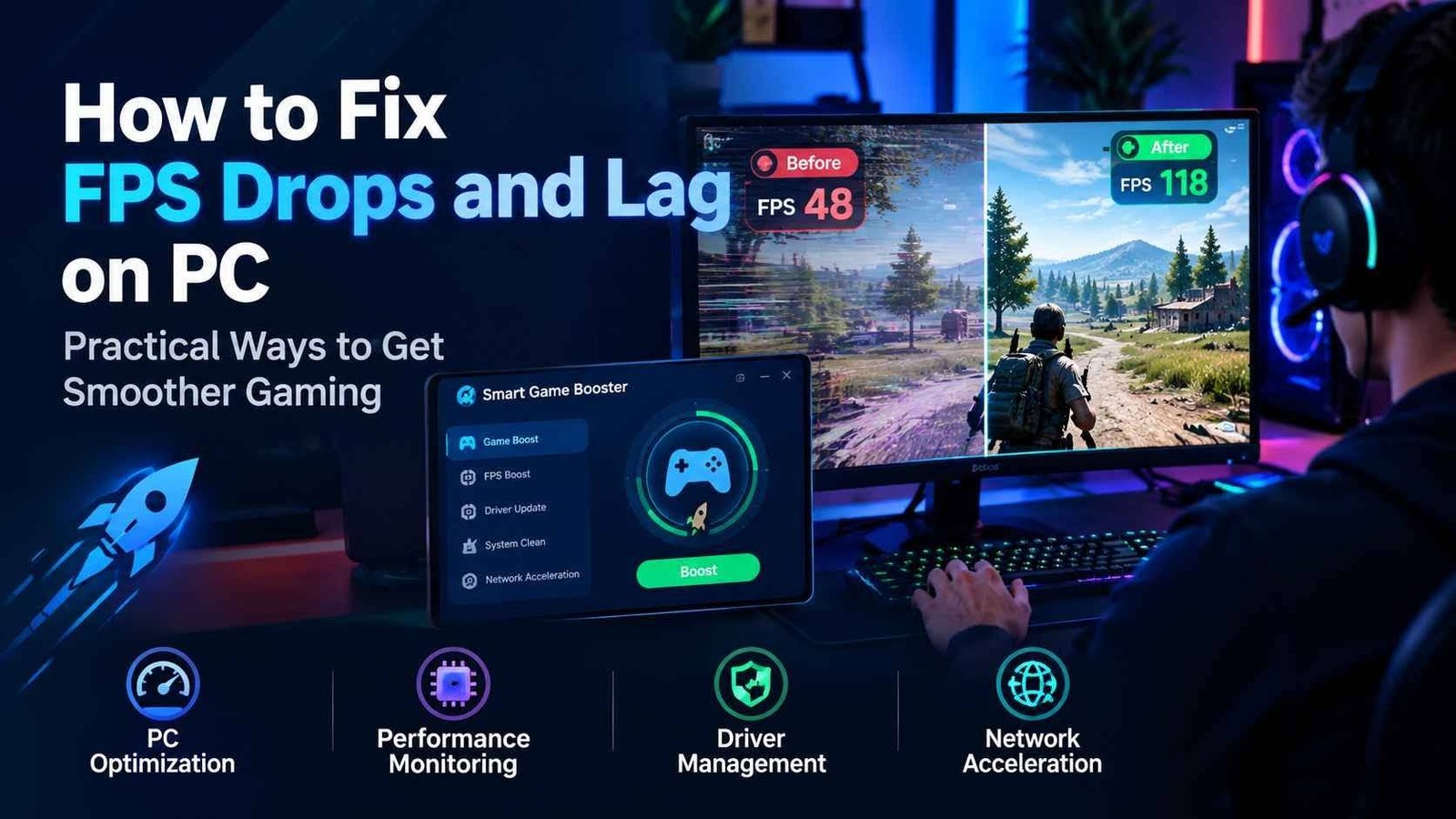
How to Fix FPS Drops and Lag on PC: Practical Ways to Get Smoother Gaming
A gaming PC does not always need a hardware upgrade when a game starts suffering from FPS drops, stuttering, or lag. Even a reasonably powerful computer can experience performance problems when background applications consume resources, drivers become outdated, temperatures rise, or graphics settings are too demanding.
Before replacing a graphics card or buying additional RAM, it makes sense to identify what is actually causing the problem. A combination of Windows maintenance, sensible game settings, updated drivers, and performance monitoring can often make gaming more consistent.
A Game Booster can also be useful for players who want to bring several of these optimization tasks together. Smart Game Booster provides tools for PC optimization, driver management, game monitoring, and network acceleration, giving users a central place to check several common causes of poor gaming performance.
What Causes FPS Drops on a Gaming PC?
FPS, or frames per second, represents how many frames a computer renders during gameplay. Higher FPS can make movement and camera control appear smoother, but consistency is just as important as the average number.
A game that normally runs at 100 FPS but suddenly drops to 30 FPS during busy scenes can feel much worse than a game that stays consistently around 70 or 80 FPS.
There are several possible reasons for these drops.
Background applications are one common cause. Web browsers, cloud storage services, software updaters, video recording tools, launchers, and other programs can use CPU and RAM while a game is running.
Graphics settings can also put excessive pressure on a GPU. High-resolution textures, shadows, reflections, volumetric effects, and advanced lighting can significantly increase the workload.
Outdated drivers are another possibility. Graphics drivers are responsible for communication between Windows and the GPU, so compatibility problems can sometimes appear after a game or operating system update.
Heat should not be ignored either. If a CPU or GPU becomes too hot, the hardware may reduce its operating speed to control temperatures, which can result in lower performance.
Check Your Performance Before Making Changes
The first step in troubleshooting is to establish a baseline.
Instead of immediately changing several settings, play the affected game for a few minutes and observe what happens. Note the average FPS as well as sudden drops, stutters, and unusual loading delays.
It is also useful to monitor CPU usage, GPU usage, RAM consumption, temperatures, and network ping.
For example, if the GPU is consistently close to full utilization, reducing graphics settings may be helpful. If CPU usage is unusually high because several background applications are active, closing unnecessary programs could make a bigger difference.
Smart Game Booster includes an in-game monitoring feature that can display information such as FPS, CPU and GPU usage, temperatures, RAM, and network ping. Having these figures visible while playing can make troubleshooting easier because you can see whether a problem is related to hardware load or the network.
Close Unnecessary Background Applications
One of the easiest optimization steps is to reduce the number of unnecessary programs running while gaming.
Windows Task Manager can show which applications are using CPU, memory, disk, and network resources. If a browser with dozens of tabs or another demanding application is consuming significant resources, closing it before starting a game may help.
However, users should avoid randomly ending unfamiliar Windows processes. Some background processes are essential to the operating system.
Smart Game Booster’s PC Boost feature is designed to simplify this process by managing unnecessary background applications and services. Its Auto Boost function can also apply optimization when a supported game starts.
This does not mean every background process should be removed. The goal is to free resources that are not needed for the gaming session while keeping important Windows functions running normally.
Update Your Graphics Drivers
Drivers are easy to forget because they normally work without requiring attention. However, keeping important hardware drivers updated can help maintain compatibility with newer games.
A recently released game may include support for newer driver versions, while an existing title may receive an update that changes how it interacts with graphics hardware.
Smart Game Booster includes a driver updater that can check graphics and audio drivers. Depending on the version of the software, users can access manual or automatic driver-update features.
Driver updates should not be considered a guaranteed FPS upgrade. Results vary depending on the hardware, game, and driver version. Their main benefit can be improved compatibility, stability, and access to fixes for known issues.
Lower the Right Graphics Settings
If your GPU is struggling, you do not necessarily have to change every graphics option to Low.
Start with settings that tend to have a noticeable effect on GPU workload. Resolution, shadows, reflections, volumetric effects, and advanced lighting are examples worth checking.
Change one or two settings at a time and compare the result. This approach makes it easier to determine which option is affecting performance.
An FPS limit can also help in some situations. Rather than allowing a system to constantly move between very high and very low frame rates, a reasonable frame-rate target can sometimes produce a more consistent experience.
Keep Your System Clean
A Windows PC naturally accumulates temporary files, caches, logs, and other unnecessary data. These files do not automatically cause major FPS problems, but regular system maintenance can help keep the computer organized.
Smart Game Booster includes system-cleaning tools intended to remove unnecessary files and free storage space. It also provides game-related optimization features for compatible systems.
Storage cleanup should not be confused with upgrading hardware. Removing temporary files will not turn an entry-level graphics card into a high-end GPU. The purpose is to reduce unnecessary clutter and simplify system maintenance.
What Is an FPS Booster?
An FPS Booster is generally designed to improve the gaming environment around the game rather than physically upgrading the computer.
Smart Game Booster combines several performance-related functions, including PC Boost, RAM optimization, background-process management, performance adjustments, driver management, and FPS monitoring.
The software also provides a Super Boost feature that can adjust GPU and VRAM performance through overclocking. Advanced performance settings should be approached carefully because the results can vary between graphics cards.
Higher clock speeds can also increase heat and affect stability. Anyone experimenting with overclocking should monitor temperatures and test system stability instead of assuming that more aggressive settings will always provide better gameplay.
For users who prefer a simpler approach, basic optimization and monitoring can be used without immediately changing advanced hardware settings.
FPS and Ping Are Different Problems
Not every type of gaming lag is caused by the PC.
FPS describes rendering performance, while ping measures communication time between the computer and a game server. This means a player can have excellent FPS and still experience delayed actions, rubber-banding, or connection problems.
Network congestion, packet loss, server distance, and routing can all affect online gaming.
Smart Game Booster also includes network acceleration features. Its product information states that it uses a large network of gaming routes intended to help optimize connections for supported games. Actual results can vary depending on the game server, ISP, location, and network conditions.
This distinction is important when troubleshooting. If FPS remains stable but ping suddenly increases, changing graphics settings is unlikely to solve the underlying network problem.
How to Use Smart Game Booster
Getting started is relatively straightforward.
1. Install the Software
Download and install Smart Game Booster on a Windows PC and launch the application.
2. Find Your Game
Allow the software to scan for installed games. If a game is not detected automatically, it can be added manually where supported.
3. Apply PC Boost
Use the PC Boost function to optimize unnecessary background activity and available system resources.
4. Monitor Performance
Launch the game and watch FPS, CPU usage, GPU usage, temperatures, RAM, and ping. Compare the results with your original baseline.
5. Make Additional Changes
If the problem continues, identify the likely cause. Lower graphics settings if the GPU is overloaded, close unnecessary programs if memory usage is high, update drivers if compatibility issues exist, and investigate the network if ping is the problem.
Is a Game Booster a Replacement for Better Hardware?
No software can completely overcome a hardware limitation.
If a computer does not meet the minimum requirements of a modern game, optimization may improve efficiency but cannot turn inadequate hardware into a high-end gaming system.
A game booster is more useful when performance problems are related to unnecessary background activity, outdated drivers, system maintenance, or the need to manage multiple gaming settings conveniently.
It can also save time for users who would otherwise have to check Windows processes, drivers, system information, and game-related settings separately.
Final Thoughts
FPS drops and gaming lag can have many causes, so troubleshooting should begin with measurement rather than guesswork. Check FPS, CPU and GPU usage, temperatures, RAM consumption, and network performance before changing settings.
From there, close unnecessary applications, keep drivers updated, adjust demanding graphics options, maintain available storage, and investigate network issues when online gameplay is affected.
Smart Game Booster brings several of these tools together, including PC optimization, FPS monitoring, driver management, and network-related features. Used as an optimization and troubleshooting utility rather than a guaranteed solution to every performance problem, it can make routine gaming maintenance more convenient.