Choosing a Docking Station for Your MacBook
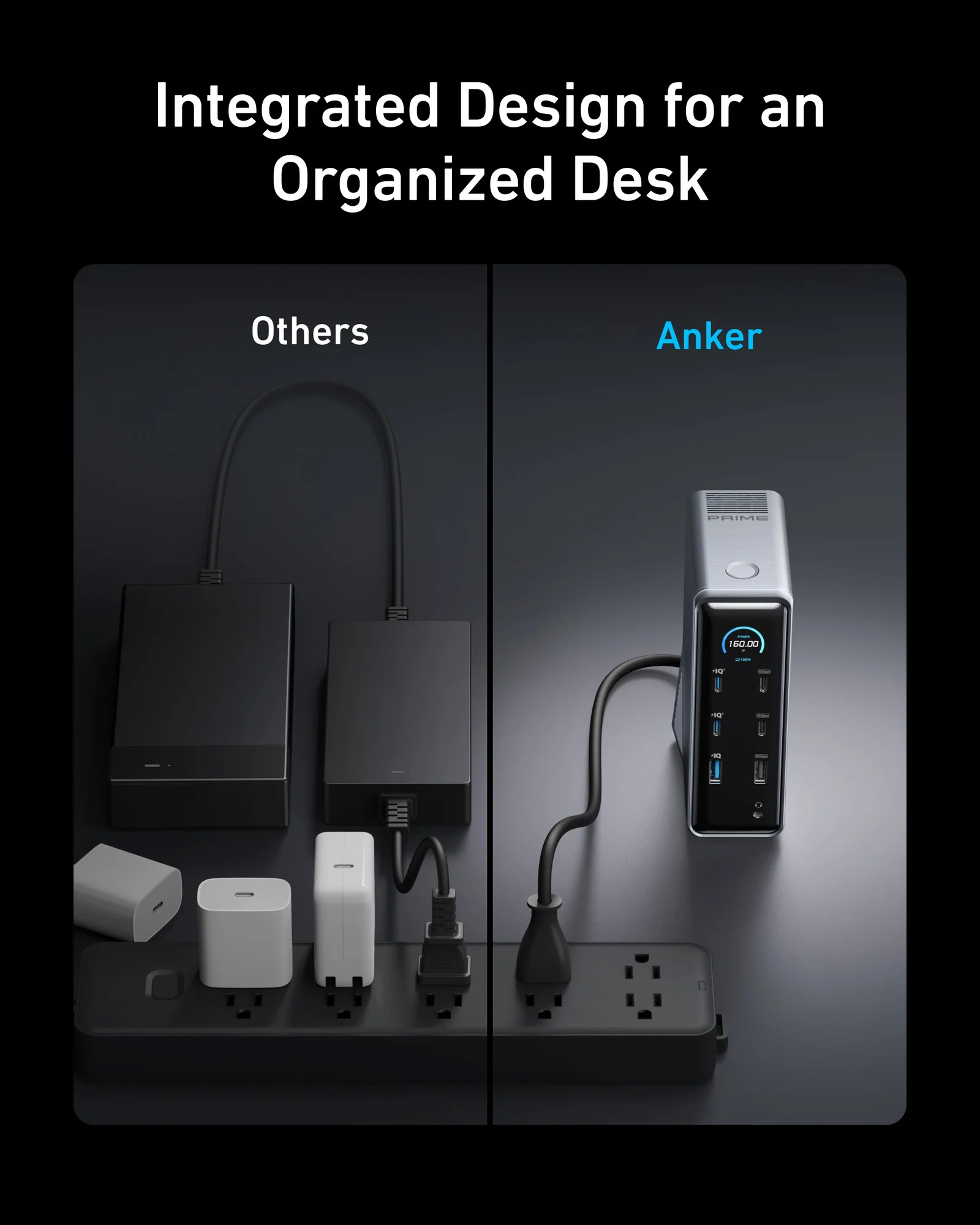
A MacBook is easy to carry, but a desk setup may need more connections than the laptop offers. A monitor, keyboard, external drive, and wired internet can quickly clutter the desk. A docking station brings several connections together, often through one cable. The challenge is finding one that suits your equipment. A long list of ports is not much use if the dock cannot support your monitor or provide enough power.
Map Out Your Desk Setup First
Start by listing the devices you regularly connect. Include monitors, storage drives, a keyboard, mouse, headphones, memory cards, and an Ethernet cable if you use one. Note the type of connection each accessory needs. This simple check helps you focus on practical features. A photographer may need an SD card reader and fast storage connections. Someone who works with spreadsheets may care more about monitor output, Ethernet, and standard USB ports. Prioritize the accessories that stay connected all day.
Understand USB-C and Thunderbolt
Many docks connect to a MacBook through USB-C, but the connector’s shape does not tell you everything it can do. USB-C is the physical connector; the technology behind it determines data speeds, display support, and charging capabilities. Some docking stations use Thunderbolt, which can provide greater bandwidth for demanding peripherals and display setups. Other models use USB-C with different limitations. Check the specifications for both the dock and your exact MacBook. Ports can look alike while supporting different features. Think of the laptop, dock, cable, and accessories as one system. A feature works only when the required parts support it.
Check Monitor Support Carefully
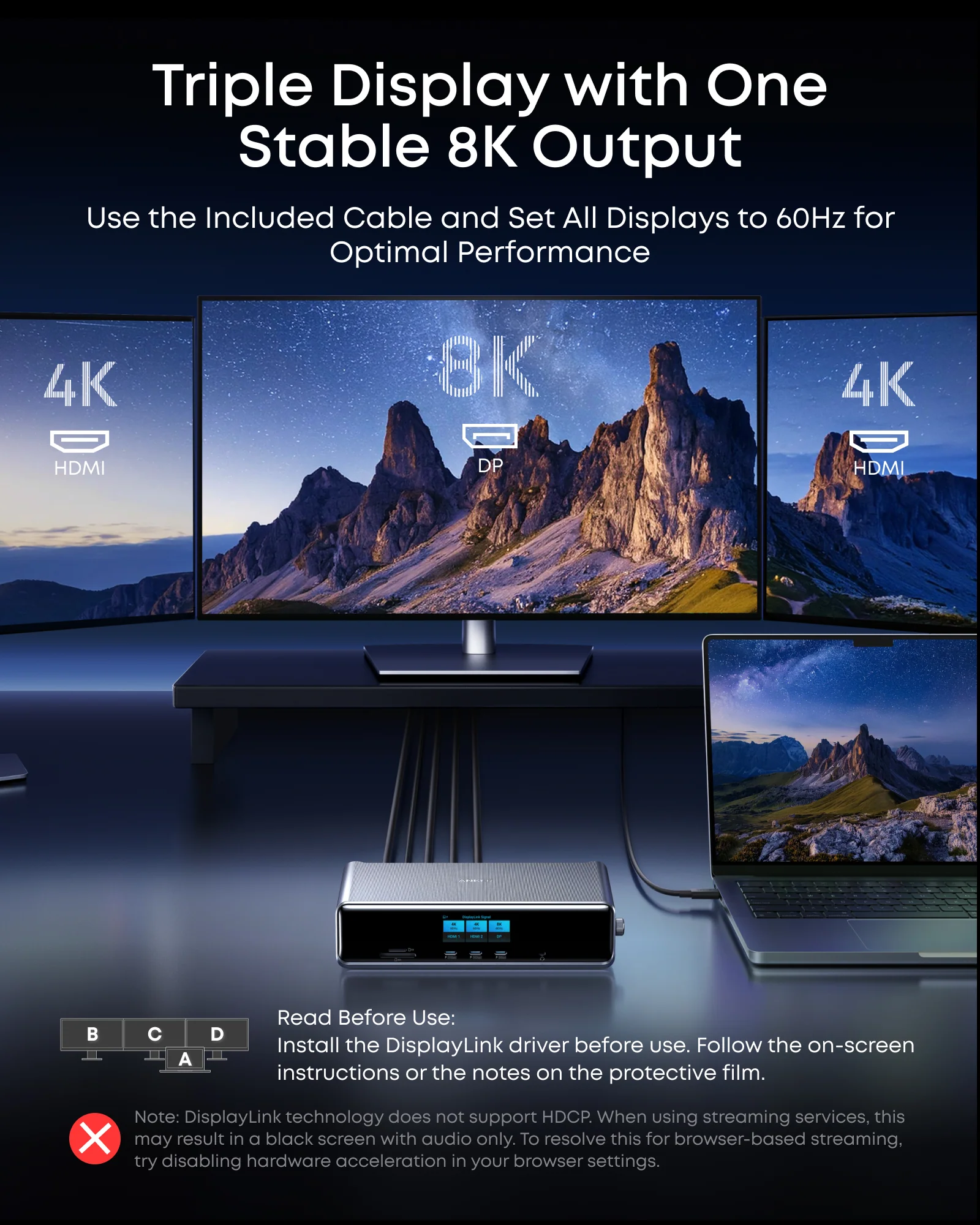
An external display is a major reason people buy a MacBook docking station, but monitor compatibility deserves a closer look. Confirm the resolution and refresh rate the dock supports, then compare them with your monitor’s requirements. Planning to use two displays? Check that the dock supports the arrangement with your specific MacBook model. External-display capabilities vary across MacBook models and chip generations, so a general claim on a product page may not tell you whether your setup will work. Also check how the video is delivered. Some docks use direct video connections, while others depend on software or a particular display technology. Each approach has its own requirements. For work, a stable connection matters more than an impressive maximum specification.
Make Sure Charging Is Powerful Enough
Some docks can charge a MacBook while handling connected accessories. Their power output varies, however, and a lower-powered model may not keep up with a laptop under a heavy workload. Look for the dock’s power-delivery rating and compare it with the needs of your MacBook. Check whether the power adapter is included and whether it supplies the dock and laptop together. On certain models, power is shared among connected devices. Do not assume that every USB-C dock provides the same charging performance. A suitable power rating helps keep a desk setup convenient without requiring a separate laptop charger.
Look Beyond the Port Count
The position of the connections affects everyday use. Front-facing ports are handy for temporary accessories such as flash drives and headphones. Rear-facing ports can keep permanent cables tucked away. A longer connection cable may help when the MacBook sits on a stand or farther from the dock. Consider size, weight, and ventilation as well. A compact model may suit travel, while a larger dock can provide more connections for a permanent workspace. Docks can become warm during operation, so place yours on a firm, open surface rather than covering it with papers or fabric.
Set It Up One Connection at a Time
Before buying a macbook docking station, confirm the MacBook’s exact model, year, operating system requirements, and the dock’s included cable. Check whether particular features need additional software or drivers. When setting it up, connect one accessory at a time. If a monitor is not detected, check its selected input, reseat the cable, and review the dock’s instructions. If a drive does not appear, check its cable and whether its format is supported. Adding devices gradually makes problems easier to trace.
Conclusion
A docking station should make a MacBook workspace easier to use, not add compatibility headaches. Begin with the devices you need, then compare connection standards, display support, charging power, and physical layout. The best MacBook docking station is not necessarily the one with the most ports. It is the one that works reliably with your equipment and fits the way you work.
Frequently Asked Questions
1. Does every docking station work with every MacBook?
No. Compatibility depends on the MacBook’s ports, supported standards, operating system, and the dock’s features. Check your exact model.
2. Can a docking station charge a MacBook?
Many models can, but power output differs. Compare the dock’s rating with your laptop’s charging requirements.
3. Can one dock connect two monitors?
Some can, but support depends on the dock’s technology and the MacBook model. Verify the complete setup before buying.
4. Is Thunderbolt better than USB-C?
Thunderbolt can offer more bandwidth for demanding connections. Its benefits depend on whether the MacBook, dock, cable, and accessories support it.
5. Does a docking station improve MacBook performance?
No. It adds connectivity; it does not increase processor speed or memory. It can make a multi-device workspace easier to manage.